Link page & QR: one link for your bio, a QR for customers to scan
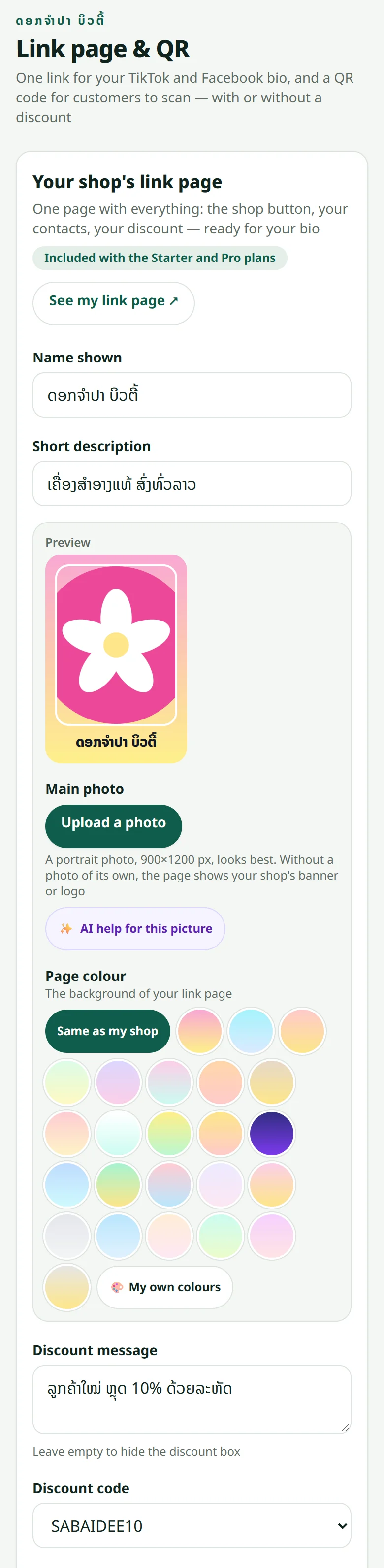
One page with the shop button, your contacts, your Facebook / TikTok links and a discount — put its link in your bio, and make a QR code that carries a promo code.
The “Link page & QR” menu makes one small page with everything on it: a button to the shop, a WhatsApp button, your Facebook / TikTok / Instagram / YouTube links and a discount box. Put that page's link in your TikTok and Facebook bio — customers tap one link and choose where to go.
- 1Open “Link page & QR”: enter the name shown, a short description and a portrait photo (or use the shop's picture)
- 2Write the discount message and pick a code from “Promotions” — leave it empty if there is no discount
- 3Enter the WhatsApp number with the message written for the customer, and add your links (Facebook, TikTok, Instagram, YouTube or any other) with an icon
- 4Press Save, then “See my link page” — copy its address into your bio
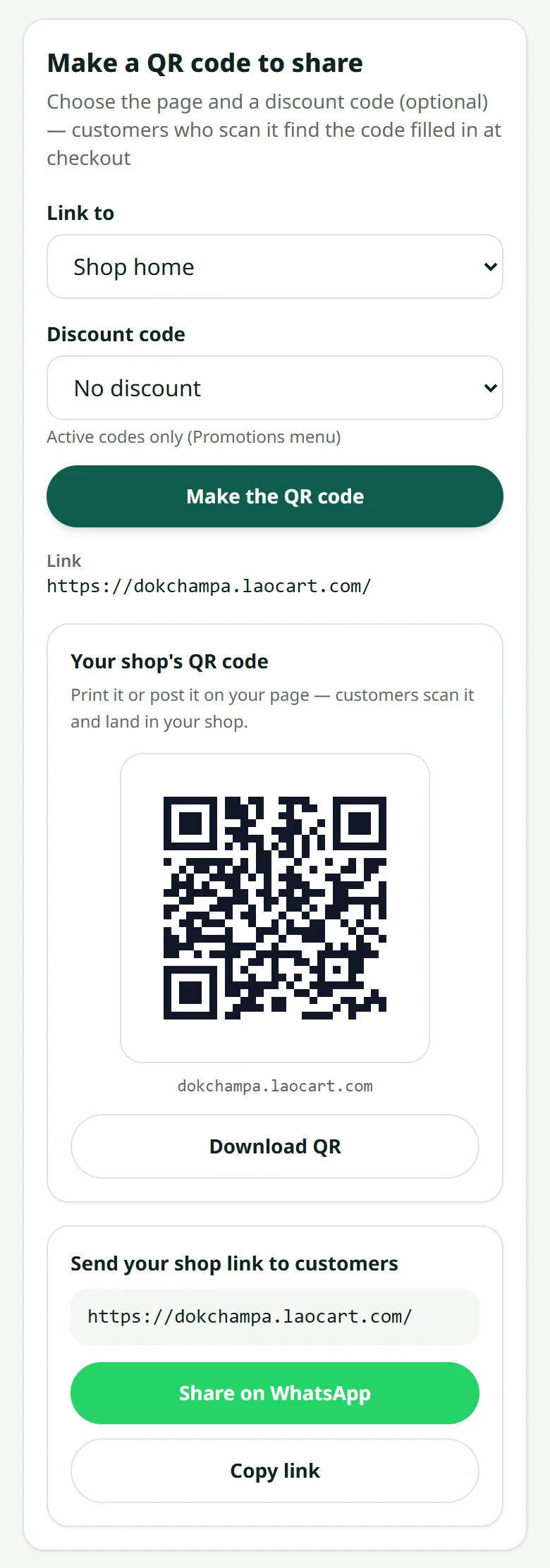
Lower on the same page, “Make a QR code to share”: choose whether the QR opens the shop's home or the link page, and an active promo code if you like — customers who scan it find the code already in their cart. Print the QR on business cards, on packaging, on the shop door, or post it as a picture.
The network links you enter here also appear at the bottom of every page of your shop. How to make a code: Promo codes. A product picture with a QR to post: Pictures ready to post.
Related articles
Promo codes
Create a code customers type at checkout — a percentage or a fixed amount off, for new customers only or for everybody, with or without an expiry date.
Pictures ready to post on Facebook, TikTok and WhatsApp
Turn a product into a Lao picture and text, ready to post, in one tap.
What the buyer sees
Knowing their side of the screen makes answering a customer much faster.
What the plans include
Every plan sells the same way — they differ on products, video, domain and team size.
Still stuck?
Message us on WhatsApp. Sending your shop name and a screenshot gets you an answer much faster.
Message LaoCartWant us to do it for you — enter your products, design your covers? That is an optional service, billed separately. See the optional services