Sell digital products: codes, texts or pictures
Sell what is never shipped — top-up codes, gift cards, links, pictures — the system gives them to the customer once you confirm the payment.
A digital product is never shipped. Its stock is units: one code, one text or one picture = one unit for one customer. The product's stock is the number of units left — counted for you.
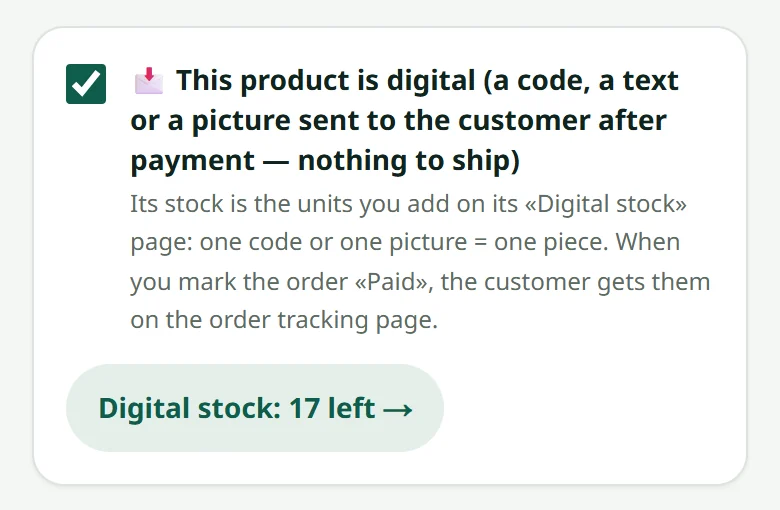
- 1Open the product in Products, tick “Digital product” and save
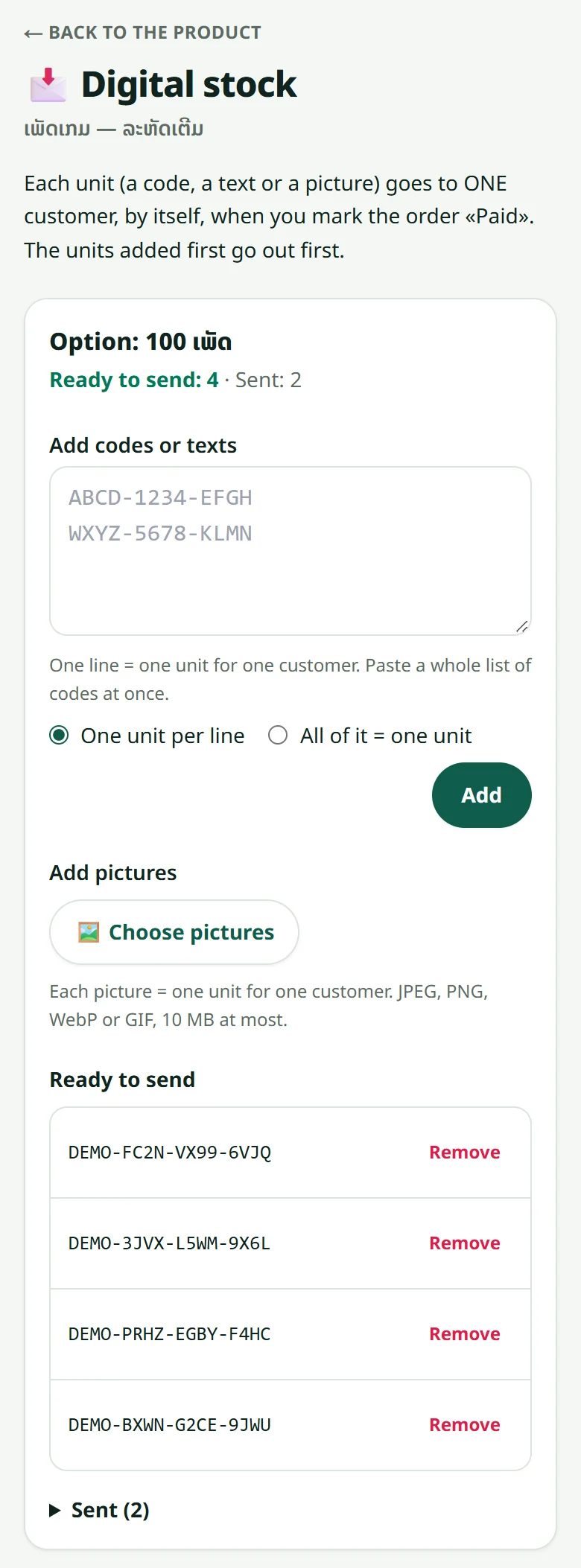
- 2Open its “Digital stock” page (the button at the top of the product)
- 3Paste codes — one line = one unit — or choose pictures: each picture = one unit
- 4If the product has options (for example 100 baht / 500 baht), add units to each option
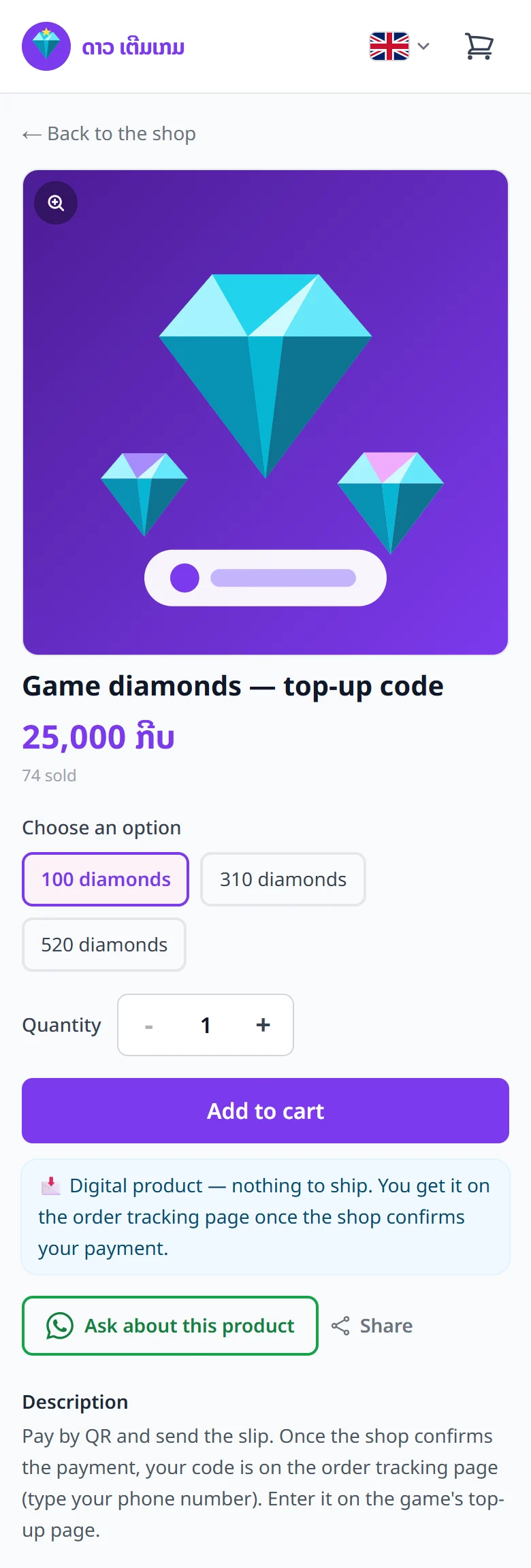
Customers order as for any product. A cart of digital products only asks no address and has no delivery fee: just a name and a phone number, then a QR payment with the slip. Digital products are never cash on delivery.
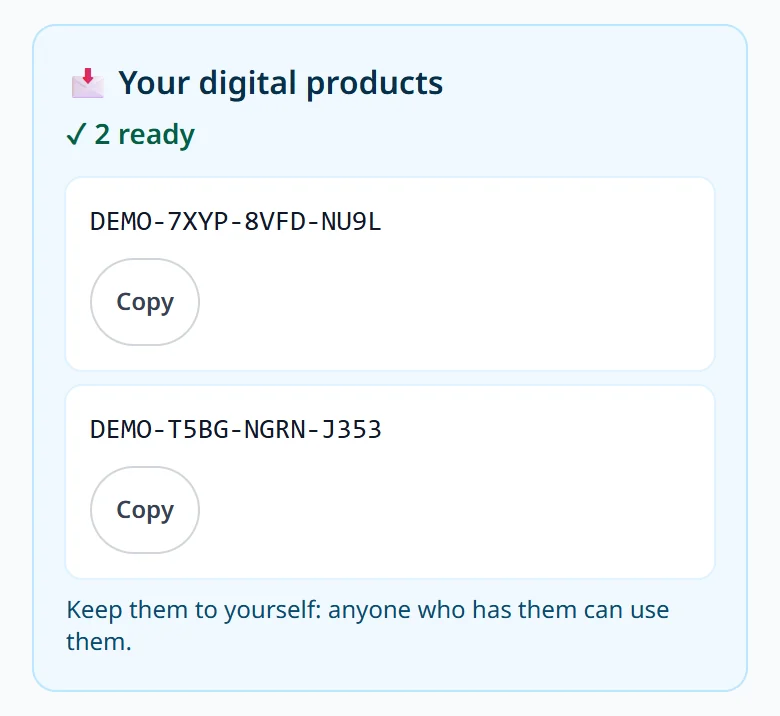
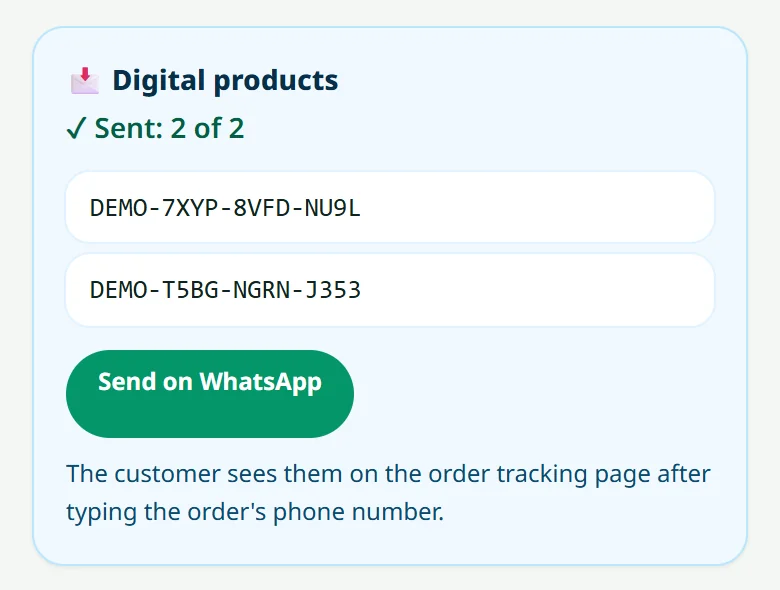
When you have checked the slip and set the order to “Paid”, the system gives that order the oldest units at once. The customer opens the order tracking page, types the order's phone number and sees their codes or pictures. If they left an e-mail address at checkout, the confirmation mail says they are ready too.
The order page shows what was given, with a WhatsApp button and the message already written.
Related articles
Still stuck?
Message us on WhatsApp. Sending your shop name and a screenshot gets you an answer much faster.
Message LaoCartWant us to do it for you — enter your products, design your covers? That is an optional service, billed separately. See the optional services