Print parcel labels
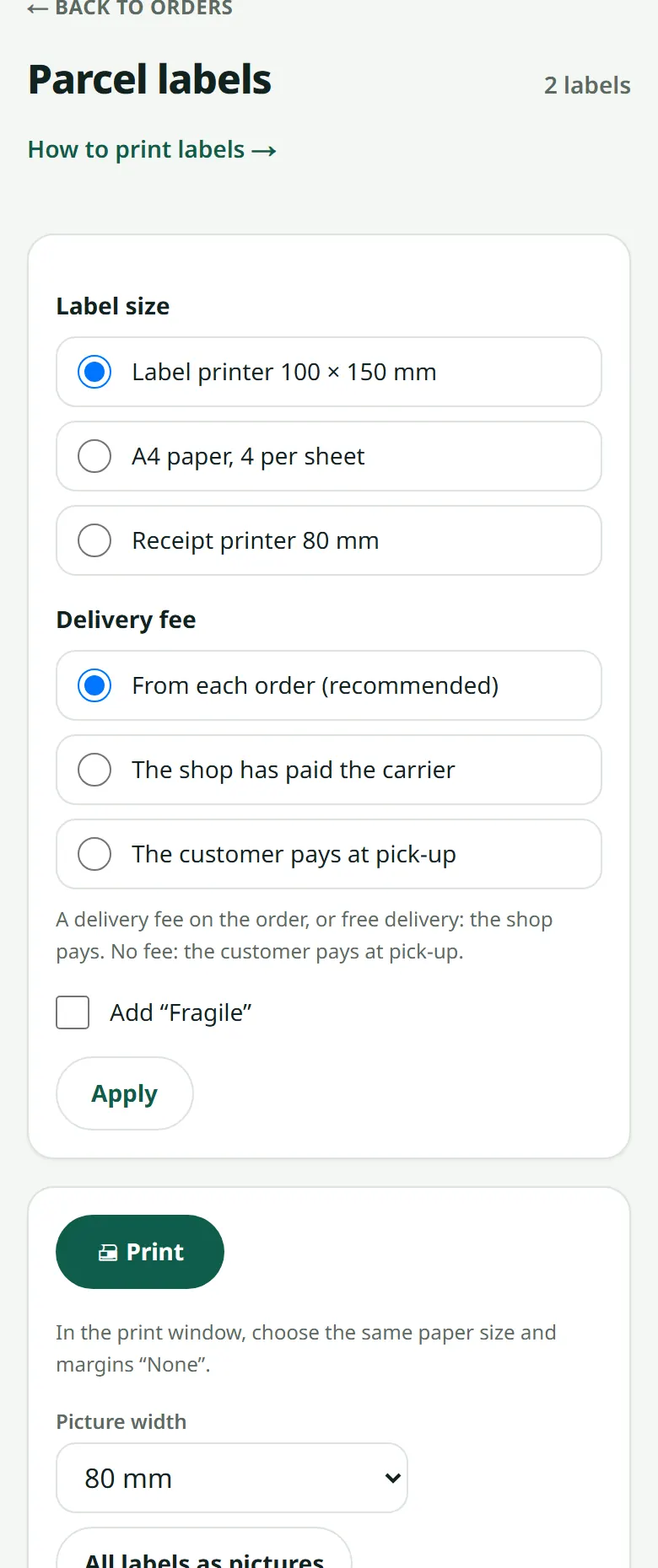
Print a label for each parcel, on a label printer, on A4 paper or as a picture from your phone.
Each label shows the customer's name, phone and address in large Lao letters, the delivery company, and a clear box saying either how much to collect or that the order is already paid.
- 1Open Orders and tick the orders to send, or tap “Ready to send: print all”.
- 2Choose the label size that matches your paper.
- 3Tap Print. In the print window choose the same paper size and margins “None”.
- 4On a phone with a small Bluetooth printer, tap “Save as a picture” and send the picture to your printer's app.
- 5Write the destination branch on the label if the customer told you one, then hand the parcel to the carrier and add their tracking number in the order (tracking number).
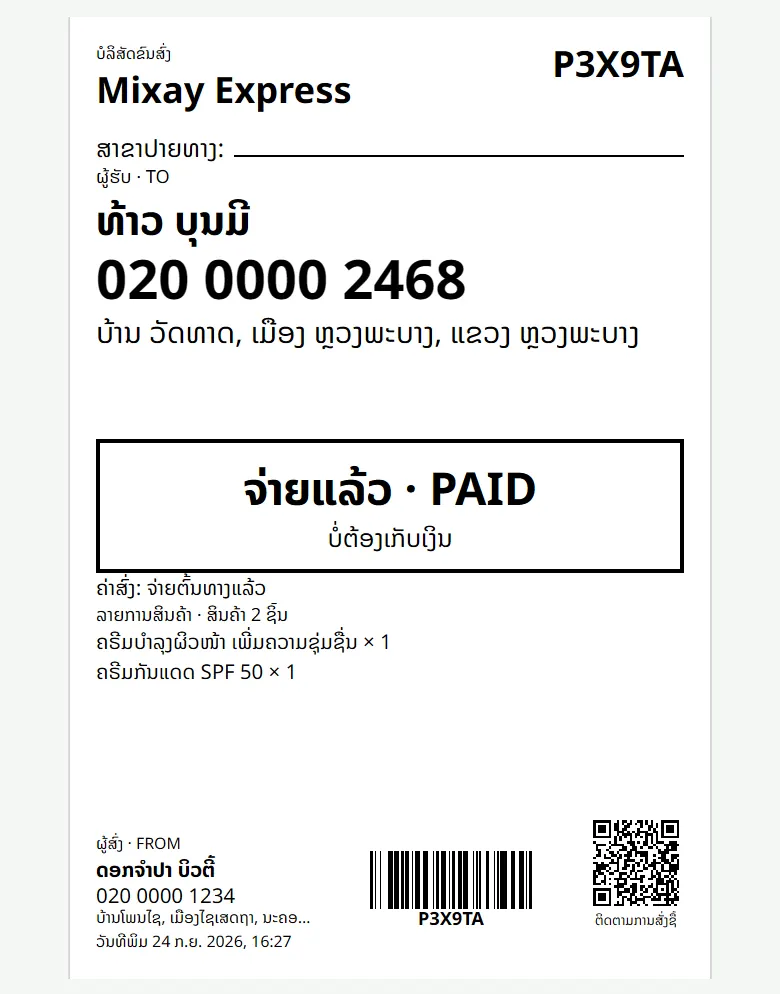
The QR code and the order code on a label open the order's tracking page, which shows the items and the amounts — anyone holding the parcel can see it. An unpaid order gets no QR. If you change your shop address, the QR on older labels keeps working for 90 days.
Related articles
Still stuck?
Message us on WhatsApp. Sending your shop name and a screenshot gets you an answer much faster.
Message LaoCartWant us to do it for you — enter your products, design your covers? That is an optional service, billed separately. See the optional services